Often in projects, especially private hobby projects, I find myself getting a headache when trying to understand the software license for some library or graphics that I want to use. I have know found two sites that makes this a bit easier.
http://choosealicense.com/
https://tldrlegal.com/
Both sites lists popular licenses and simple tables showing what you have to, can and can not do with the licensed object. Very helpful.
Thursday, June 25, 2015

CSRF in JSF 2.2
In a past project I worked on we were assigned with protecting the web application we were building against CSRF attacks. We solved this the usual way by generating a token for every session that had to be posted with every form.
We used JSF 2.1 but recently we upgraded to 2.2. When reading about the new features I stumbled upon a small note saying that it JSF now has built-in support for CSRF protection.
see http://jdevelopment.nl/jsf-22/ and search for Cross Site Request Forgery protection
I have not tried this but it seems like a very good thing. I had some problem finding out if something was needed to activate it but finally I found this documentation
http://www.oracle.com/webfolder/technetwork/tutorials/obe/java/JSF-CSRF-Demo/JSF2.2CsrfDemo.html
As it seems all you have to do to activate the CSRF protection is to ass the URL pattern of the pages you want to protect inside a protected-views element in faces-config.xml. See the section called "Implementing CSRF Protection"
If someone tires it out, please comment and let me know of the results.
Key Property Store(KPS) in Oracle API Gateway
The views expressed on this blog post are my own and do not necessarily reflect the views of Oracle
The Key Property Store(KPS) in Oracle API Gateway is an amazing tool. The KPS allows the policy administrator to configure a table in a data store. This table can later be populated by a KPS administrator in the Web UI of Oracle API Gateway. This allows you to store arbitrary configuration data in OAG and, because it can be edited from the Web GUI, enables you to edit this data in runtime without deploying new policies.
In this post I will show a simple example of how to create and edit the a KPS table. I will also show how to access the data stored in the table. This example is based on version 11.1.2.3.0 of OAG.
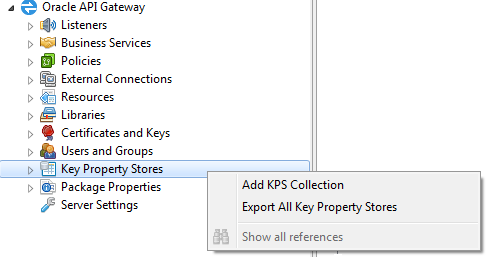
Type a name for your collection. A alias prefix can be be defined. If a prefix like below is used , the tables will be accessible using a prefixed name. A table named users in this collection would be accessed using the name my_tables_users. It is not a requirement to use an alias prefix but it can be useful to avoid conflict with other collections. The data source is the way the collection and tables are stored. The default is the embedded Cassandra database of OAG, but a SQL database or a file could also be used for storage.

To add a table in the collection right-click the collection under the Key Property Store node and select Add Table.

Add a name and aliases that is used to access the table. At least one alias must be added.

The table is now created. Next is to create the columns. Click the table in the gateway tree and select the tab Structure. Click the add button to add a column. One column must be defined as primary key.
The admin GUI for OAG is used to administer the data contained in the table. To access the data, browse to the admin GUI, eg. https://localhost:9080. Login with a user with the KPS Administrator role, eg. the default admin user.
The KPS GUI is located under the settings tab and then the Key Property Store tab. Once you selected you table you can add and edit data in the table.

${kps.my_tables_users['Stefan'].age}
The same is accomplished using this expression
${kps.my_tables_users.Stefan.age}
The expressions can be tested using a trace filter and will result in the string 28.
The Key Property Store(KPS) in Oracle API Gateway is an amazing tool. The KPS allows the policy administrator to configure a table in a data store. This table can later be populated by a KPS administrator in the Web UI of Oracle API Gateway. This allows you to store arbitrary configuration data in OAG and, because it can be edited from the Web GUI, enables you to edit this data in runtime without deploying new policies.
In this post I will show a simple example of how to create and edit the a KPS table. I will also show how to access the data stored in the table. This example is based on version 11.1.2.3.0 of OAG.
Create a table
A KPS table is created using the OAG Policy Manager. A table is contained in a KPS collection, that is a collection of tables. Add a new collection by right-clicking the Key Property Store node in the gateway tree to the left and selecting Add KPS CollectionType a name for your collection. A alias prefix can be be defined. If a prefix like below is used , the tables will be accessible using a prefixed name. A table named users in this collection would be accessed using the name my_tables_users. It is not a requirement to use an alias prefix but it can be useful to avoid conflict with other collections. The data source is the way the collection and tables are stored. The default is the embedded Cassandra database of OAG, but a SQL database or a file could also be used for storage.
To add a table in the collection right-click the collection under the Key Property Store node and select Add Table.
Add a name and aliases that is used to access the table. At least one alias must be added.
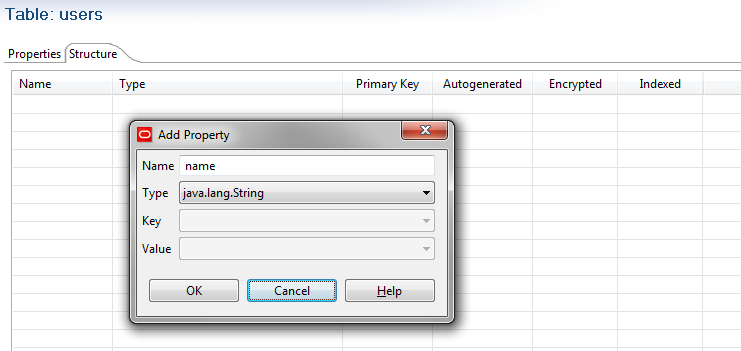
The table is now created. Next is to create the columns. Click the table in the gateway tree and select the tab Structure. Click the add button to add a column. One column must be defined as primary key.
Insert and edit data in table
The admin GUI for OAG is used to administer the data contained in the table. To access the data, browse to the admin GUI, eg. https://localhost:9080. Login with a user with the KPS Administrator role, eg. the default admin user.The KPS GUI is located under the settings tab and then the Key Property Store tab. Once you selected you table you can add and edit data in the table.
Accessing data in KPS
The KPS tables can be accessed using selector expressions i OAG. The selector expression should start with kps and then the alias for the table, including any collection prefix alias. In the case of my example tables this would be used to lookup the age of the user with username Stefan.${kps.my_tables_users['Stefan'].age}
The same is accomplished using this expression
${kps.my_tables_users.Stefan.age}
The expressions can be tested using a trace filter and will result in the string 28.
Advanced querying of KPS in Oracle API Gateway
The views expressed on this blog post are my own and do not necessarily reflect the views of Oracle
The standard and documented way to query a KPS is to query the primary key column. This is normally done with a selector expression like this, from the OAG documentation.
${kps.CustomerProfiles[JoeBloggs].age}
This expression retrieves the the age column on the KPS table CustomerProfiles with JoeBloggs for the value in the primary key column.
This is fine in many cases where you always have the primary key. But in some cases you have the need to query other columns in the table. This is possible but not using a selector expression.
By using a script filter you can query other columns. The workings of the example is explained with code comments.
importPackage(Packages.com.vordel.kps.impl);
importPackage(Packages.com.vordel.kps.query);
function invoke(msg)
{
// Get an attribute that we use for querying var nameAttribute= msg.get("nameAttribute");
// Get the KPS table with alias "User" var appData= KPS.getInstance().getModel().getAliases().get("AppData");
//Create a KeyQuery, the first argument is the column name, the second is the value that is queried for var query = new KeyQuery("name", nameAttribute);
//Preform the query
var appDataRow = appData.getCached(query);
//Add the row as a attribute
msg.put("appDataRow", appDataRow );
return true;
}
The retrieved row can now be reached with a selector expression. The following retrieves the age column of the row.
${appDataRow.age}
Subscribe to:
Posts (Atom)